Azure
- Last Updated: April 2, 2026
- 4 minute read
- WhatsUp Gold
- Version 2026
Azure Credential instances store Microsoft Azure authentication fields needed to connect to, discover, and monitor Microsoft Azure cloud devices. Optionally, you can also configure this credential type with fields that enable WhatsUp Gold to gather enterprise-wide billing (usage) information.
You can apply the following credential sets to an Azure Credential instance:
Azure Tenant Credential Fields. Tenant credentials provide WhatsUp Gold discovery, monitors, tasks, and so on the ability to interact with and manage your Azure resources. For details on how to populate these fields, see the topic titled Steps needed outside of WhatsUp Gold.
Azure Billing Fields (Optional). This API key/ID pair enable WhatsUp Gold to fetch billing and periodic usage measurements. You must populate these fields if you want to use the Azure Billing Performance Monitor. Your Enterprise Azure administrator has the ability to generate an API key using the Enterprise Azure Management Portal.
Steps needed outside of WhatsUp Gold for this credential to work
Before you proceed! This procedure includes steps you or your Azure administrator perform outside of WhatsUp Gold. Progress is not responsible for changes to documentation, online resources, and hosted software that originate from Microsoft Azure or other third-party vendors. The documentation that follows was accurate at the time of this WhatsUp Gold release.
In order for your WhatsUp Gold Azure credential to function correctly, you must:
- Step 1: Create an Active Directory (AD) registered application instance from the Azure Management Portal.
- Step 2: Create a secret key that is associated with the AD-application instance you created.
- Step 3: Grant the AD-application instance permissions to the resource group you want to monitor.
Steps 1 and 2: Create an AD-registered Azure Application and generate an application access ("client") key
This topic shows you how to generate an application access key. This is needed to grant WhatsUp Gold polling and discovery access to Azure. You will need to copy this key and add it to your WhatsUp Gold Azure Credential. The key (along with the Tenant and Client IDs) enables WhatsUp Gold to retrieve monitoring information from your Azure environment.
Tip: If you are creating a new AD Application Role for WhatsUp Gold you will also need to associate this application with the Azure Resource Group that contains the resources that you want to monitor. For more information, see Step 3.
This topic also walks you through steps for finding your Azure Tenant and Client IDs.
- Login to your Azure Account through the Microsoft Azure Management Portal.
- Create an Azure Active Directory application as detailed by Microsoft
here.
Note: When you provide a Name and Application Type, choose Web App / API.
- Get the Client ID (also known as "application ID") and authentication key
as detailed here.
Note: Once you click the Save button, the key value (password) will be displayed. THIS VALUE IS AVAILABLE ONLY ONCE. Copy down this password.
- Extend required API Access permissions within Azure Management Portal to
your application role.
From the Azure Management Portal, go to Azure Active Directory > App registrations and select your app from the App Registrations Grid.

Tip: Your Application ID is the Client ID needed for WhatsUp Gold.
- Under API Access, check that the following Required
Permissions are needed:
- Windows Azure Active Directory
- Windows Azure Service Management API
First Add them, and then Grant Permissions.
- You can get your Tenant ID as detailed here.
Step 3: Grant the AD Application Role access to the appropriate Azure Resource Group(s)
If you are creating a new AD Application role for WhatsUp Gold, you will also need to associate this application with the Azure Resource Group(s) containing the resources that you want to monitor. After this step, you should be able to discover Azure resources from the selected Resource Group.
- Login to your Azure Account through the Microsoft Azure Management Portal.
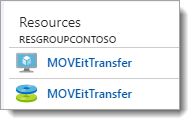
- Select the appropriate Resource Group from Dashboard. For example:
- From the Resource Group you opened, select Access Control (IAM).
- From the Access Control (IAM) page, click Add.
The Add Permissions blade opens.
- From Add Permissions blade, choose the following and click Save.
- Role. Select Reader. (Access level WhatsUp Gold requires when gathering information from your Azure environment.)
- Assign access to. No change needed. (The selection should be: Azure AD user, group or application.)
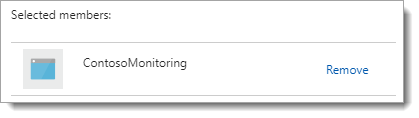
- Select. Type in the name of the Azure Application role to filter
the list. Select your AD application from the filtered results, and
click Save. For example:
 From WhatsUp Gold, you can now
scan for Azure resources. When you run a discovery scan, include this WhatsUp Gold
credential. No IP address or domain name will be needed for the scan, WhatsUp Gold
discovery gathers host and resource information from the Azure Management API (using
the secret key and AD application ID you created and associated with your resource
groups).
From WhatsUp Gold, you can now
scan for Azure resources. When you run a discovery scan, include this WhatsUp Gold
credential. No IP address or domain name will be needed for the scan, WhatsUp Gold
discovery gathers host and resource information from the Azure Management API (using
the secret key and AD application ID you created and associated with your resource
groups).